Viewing the dependency graph
The dependency graph shows the dependencies and dependents of your repository. 对于每个依赖项,可以看到版本、许可证信息、包含它的清单文件,以及它是否具有已知漏洞。 对于支持传递性依赖项的包生态系统,将显示依赖关系状态。你可以单击 ,然后选择“Show paths”,以查看引入该依赖项的传递路径。
还可以使用搜索栏搜索特定依赖项。 依赖项会自动排序,存在漏洞的包排在最上方。 For information about the detection of dependencies and which ecosystems are supported, see 依赖项关系图支持的包生态系统.
-
在 GitHub 上,导航到存储库的主页面。
-
在存储库名称下,单击“ Insights”选项卡****。

-
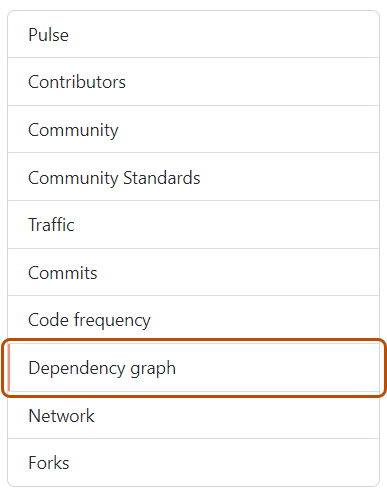
在左侧边栏中,单击“依赖项关系图”。
-
Optionally, use the search bar to find a specific dependency or set of dependencies. You can use the keywords
ecosystem:to show only packages of a certain type, orrelationship:to show only direct or transitive dependencies (if the ecosystem supports transitivity). Plain words in search bar will only match package names. -
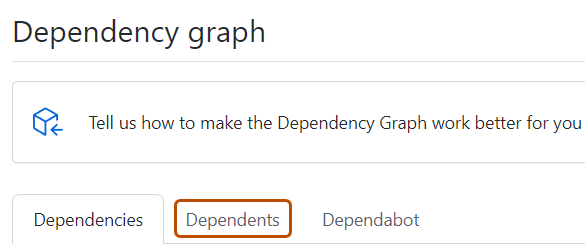
Optionally, to view the repositories and packages that depend on your repository, under "Dependency graph", click Dependents.

注意
GitHub currently only determines dependents for public repositories.
Dependencies view
For each dependency, you can see its ecosystem, the manifest file in which it was found, and its license (where detected).
-
Dependencies for private repositories, private packages, or unrecognized files are shown in plain text.
-
If the package manager for the dependency is in a public repository, you can hover on the dependency name to display a pop-up with the associated repository information.
-
You can sort and filter dependencies by typing filters as
key:valuepairs into the search bar.- Use
ecosystem: <ecosystem-name>to display dependencies for the selected ecosystem. - Use
relationship:to filter the list by relationship status. Possible values aredirect,transitive, andinconclusive. Alternatively, you can click the relationship label adjacent to a dependency name to only show dependencies of the same relationship status. This filter is only available for ecosystems with transitive dependency support. See 依赖项关系图支持的包生态系统 for more information.
- Use
Dependencies submitted to a project using the 依赖项提交 API will show which detector was used for their submission and when they were submitted. For more information on using the 依赖项提交 API, see Using the dependency submission API.
If vulnerabilities have been detected in the repository, these are shown at the top of the view for users with access to Dependabot alerts.
Dependents view
For public repositories, the dependents view shows how the repository is used by other repositories. To show only the repositories that contain a library in a package manager, click NUMBER Packages immediately above the list of dependent repositories. The dependent counts are approximate and may not always match the dependents listed.
Enabling and disabling the dependency graph
存储库管理员可启用或禁用你的用户帐户拥有的所有存储库的依赖项关系图,无论其可见性如何。 请参阅“管理安全和分析功能”。
还可以同时为组织中的多个存储库启用依赖项关系图。 有关详细信息,请参阅“保护你的组织”。
-
在 GitHub 上,导航到存储库的主页面。
-
在仓库名称下,单击 “Settings”****。 如果看不到“设置”选项卡,请选择“”下拉菜单,然后单击“设置”。

-
在边栏的“Security”部分中,单击“ Advanced Security”****。
-
阅读有关授予 GitHub 对仓库数据的只读访问权限的消息,以启用依赖项关系图,然后在“依赖项关系图”旁边单击“启用”****。
可以随时单击“Advanced Security”的设置页上“依赖项关系图”旁边的“禁用”来禁用依赖项关系图****。
Changing the "Used by" package
You may notice some repositories have a "Used by" section in the sidebar of the Code tab. Your repository will have a "Used by" section if:
- The dependency graph is enabled for the repository (see the above section for more details).
- Your repository contains a package that is published on a supported package ecosystem.
- Within the ecosystem, your package has a link to a public repository where the source is stored.
- More than 100 repositories depend on your package.
The "Used by" section shows the number of public references to the package that were found, and displays the avatars of some of the owners of the dependent projects.

Clicking any item in this section takes you to the Dependents tab of the dependency graph.
The "Used by" section represents a single package from the repository. If you have admin permissions to a repository that contains multiple packages, you can choose which package the "Used by" section represents.
-
在 GitHub 上,导航到存储库的主页面。
-
在仓库名称下,单击 “Settings”****。 如果看不到“设置”选项卡,请选择“”下拉菜单,然后单击“设置”。

-
在边栏的“Security”部分中,单击“ Advanced Security”****。
-
Under "Advanced Security", click the drop-down menu in the "Used by counter" section and choose a package.