Prerequisites
Before you configure license policies, ensure that:
- You are using GitHub Enterprise Cloud (including data-resident GHEC), and your organization has GitHub Code Security enabled on the repositories you want to use license compliance.
- You have access to manage enterprise policy and rulesets.
- Dependency graph is enabled for repositories you want to evaluate.
About license compliance
Open source license compliance lets you define a policy that specifies which licenses your dependencies are allowed to use.
When the policy is enforced with rulesets, GitHub evaluates pull requests that change package manifests, checks direct and transitive dependencies, and compares detected licenses to your policy. Pull requests with noncompliant dependencies remain blocked until violations are resolved.
Violations are typically resolved by:
- Updating the pull request to use compliant dependencies
- Approving an exception for a package
- Updating policy to allow a license where appropriate
Configuring license compliance
Create a license policy
- Navigate to your enterprise. For example, from the Enterprises page on GitHub.com.
- At the top of the page, click Policies.
- In the sidebar, click License compliance.
- Click Default policy.
- On the Edit license policy page, click Add licenses and choose Select from list.
- From the license picker, select the licenses you want to permit. The licenses in this list are categorized based on their general risk level for use in corporate environments, but this is purely informational and does not constitute legal advice. Always check with your organization's legal team for policy guidance.
- Save your changes.
Alternately, if you have an existing license policy from another tool, you can import it as a list of SPDX expressions.
- On the Edit license policy page, click Add licenses and choose Manual input.
- Enter one or more SPDX license identifiers, each on a new line.
- Save your changes.
The licenses you add form your baseline policy. You can later add package-level exceptions when handling alerts.
Configure access for Enterprise Open-Source License Managers
- Navigate to your enterprise. For example, from the Enterprises page on GitHub.com.
- At the top of the page, click People.
- In the left sidebar, click Enterprise roles.
- Click Role assignments.
- Click Assign role.
- Select the Enterprise Open-Source License Manager role.
- Choose a user or team to assign the role to.
- Click Assign role.
Assigning this role also subscribes reviewers to request notifications so they can respond to dismissal requests quickly.
Optionally use custom properties to control rollout per repository
If you want a gradual rollout, use a repository custom property to control whether each repository is in inactive, evaluate, or active enforcement mode.
-
On GitHub, navigate to the main page of the organization.
-
Under your organization name, click Settings. If you cannot see the "Settings" tab, select the dropdown menu, then click Settings.

-
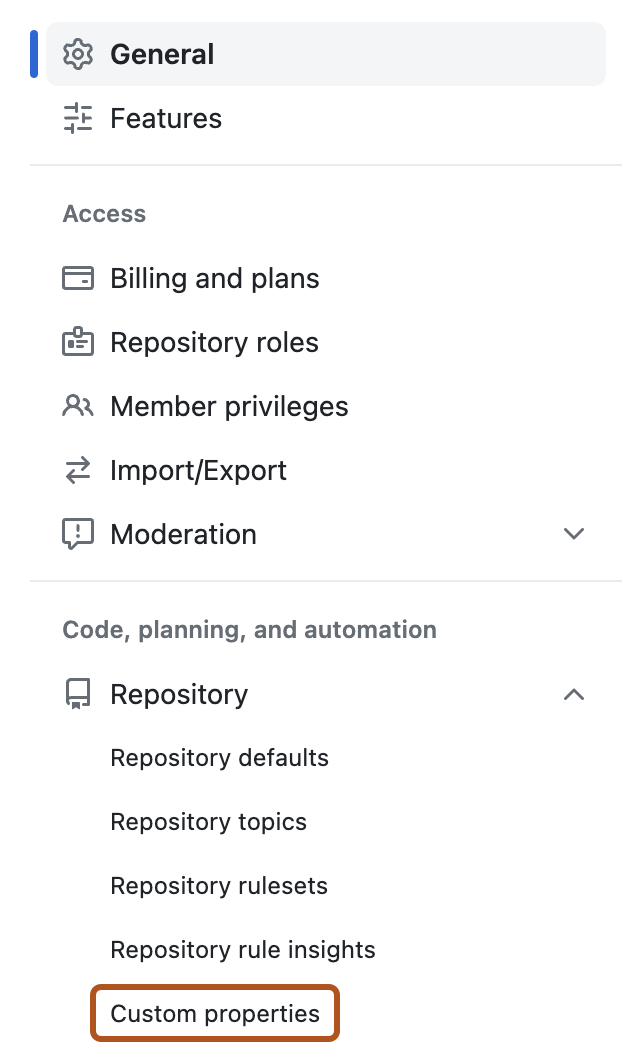
In the sidebar, under "Code, planning, and automation", click Repository, then click Custom properties.
-
Create a single-select repository custom property, for example
open_source_license_compliance. -
Add values for
inactive,evaluate, andactive. -
Set the default value to
inactive. -
Decide who can change the property value.
-
Assign property values to repositories based on their rollout stage.


Enforce policy in pull requests with rulesets
We suggest making two rulesets, one for Evaluate mode and one for Active mode. If you created custom properties to control the rollout, you can target those properties here.
-
Go to the rulesets page for the scope where you want enforcement.
-
Create a branch ruleset.
-
Under the ruleset name, set Enforcement status:
- For your first ruleset, select Evaluate.
- For your second ruleset, select Active.
-
Choose how to target repositories:
- If you use custom properties, target by
open_source_license_compliance:- For the evaluate-mode ruleset, target repositories where the property value is
evaluate. - For the active-mode ruleset, target repositories where the property value is
active.
- For the evaluate-mode ruleset, target repositories where the property value is
- If you do not use custom properties, target repositories by repository pattern or explicit repository selection.
- If you use custom properties, target by
-
Enable Require license compliance results before merging.
-
Save your changes.
For more information about rulesets, see About rulesets and Creating rulesets for repositories in your organization.
Test policy enforcement
- In a targeted repository, open a pull request that changes dependency manifests.
- Confirm that pull request annotations show license compliance results.
- If a dependency violates policy, review the generated alert and request dismissal if an exception is needed.
If the ruleset is in Active mode, the pull request remains blocked until all license policy violations are resolved.
Managing license compliance requests and policy
Review and handle exception requests
- As an Enterprise Open Source License Manager, open the list of pending license alert requests in your enterprise security views.
- Review each request and decide whether to deny or approve it.
- If you approve, choose whether the exception should apply to a package, a license, or a package pattern.
- Choose whether to apply the exception at repository scope or enterprise scope.
- Save the exception.
After a request is approved, the alert is closed and the pull request is unblocked, as long as no other required checks are failing.
Review effective policy for a repository
-
On GitHub, navigate to the main page of the repository.
-
Under your repository name, click Settings. If you cannot see the "Settings" tab, select the dropdown menu, then click Settings.

-
In the sidebar, under "Security", click License policy.
-
Review the combined policy and exception set in effect for that repository.
-
Update enterprise-level or repository-level policy as needed.

Package and license entries that are set at the enterprise level will not be editable in the repository policy. Items marked with a indicate repository-level entries which can be deleted.
Audit events
Changes to the license policy emit events to the audit log. These events are useful to review the history of changes or to feed external systems for compliance purposes. The log events are categorized as Policy Management, with a prefix of license_compliance_policy. They will have an action type create or modify. For details about the contents of the audit log events, see Audit log events for your organization.
License compliance API
There are several REST API endpoints for managing license compliance policy. You can use the API to programatically back up and restore your enterprise policy and to query whether a list of packages would create any policy violations if they were included in a repository's dependencies. In addition, operations on license compliance closure requests can generate webhook events when a request is created, receives a response, or is cancelled.
For details about the enterprise policy management API, see REST API endpoints for the dependency graph. For more about the package check API, see REST API endpoints for repositories. For more about webhooks, see Webhook events and payloads.