Re-running a Dependabot version updates job
-
On GitHub, navigate to the main page of the repository.
-
Under your repository name, click Insights.

-
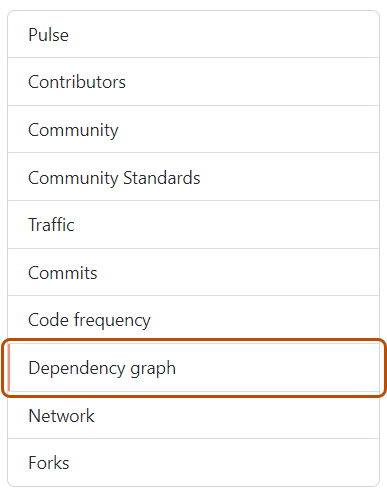
In the left sidebar, click Dependency graph.
-
Under "Dependency graph", click Dependabot.
-
To the right of the name of manifest file that you're interested in, click Recent update jobs.
-
To the right of the affected manifest file, click Check for updates to re-run a Dependabot version updates job and check for new updates to dependencies for that ecosystem.


Re-running a Dependabot security updates job
- On GitHub, navigate to the main page of the repository.
- Under your repository name, click Security and quality.
- In the left sidebar, under "Vulnerability alerts", click Dependabot.
- Under "Dependabot", click the alert you want to view.
- In the section displaying the error details for the alert, click Try again to re-run the Dependabot security updates job.