Nota:
Para poder utilizar esta característica, el administrador del sitio debe configurar Dependabot updates para tu instancia de GitHub Enterprise Server. Para obtener más información, consulta Habilitación de Dependabot para la empresa.
Es posible que no puedas habilitar ni deshabilitar Dependabot updates si un propietario de empresa ha establecido una directiva a nivel empresarial. Para más información, consulta Aplicación de directivas de seguridad y análisis de código de la empresa.
La pestaña Dependabot de su repositorio lista todos los Dependabot alerts abiertos y cerrados y sus correspondientes Dependabot security updates. Puedes filtrar las alertas por paquete, ecosistema o manifiesto. Puedes ordenar la lista de alertas y hacer clic en ellas para obtener más detalles. También puede descartar o volver a abrir alertas, ya sea una por una o seleccionando varias alertas a la vez. Para más información, consulta Acerca de las alertas Dependabot.
Acerca de las actualizaciones para las dependencias vulnerables en tu repositorio
Cada Dependabot alerta tiene un identificador numérico único y la Dependabot pestaña muestra una alerta para cada vulnerabilidad detectada. Dependabot alerts Las vulnerabilidades agrupadas por dependencia en el sistema legado generaban una única alerta por cada dependencia. Si navega a una alerta heredada Dependabot , se le redirigirá a una Dependabot pestaña filtrada para ese paquete.
Puede filtrar y ordenar Dependabot alerts mediante una variedad de filtros y opciones de ordenación disponibles en la interfaz de usuario. Para obtener más información, consulte Visualización y priorización Dependabot alerts a continuación.
También puede auditar las acciones realizadas en respuesta a las Dependabot alertas. Para más información, consulta Auditoría de alertas de seguridad.
Visualización y priorización Dependabot alerts
Puede ver, ordenar y filtrar Dependabot alerts para centrarse en las alertas que más importan.
De forma predeterminada, las alertas se ordenan por Lo más importante, lo que le ayuda a priorizar las correcciones en función de factores como el impacto potencial, la capacidad de acción y la relevancia. Esta priorización se mejora continuamente y tiene en cuenta las señales como la puntuación de CVSS, el ámbito de dependencia y si se detectan llamadas de función vulnerables.
Puede ver todos los elementos abiertos y cerrados Dependabot alerts y correspondientes Dependabot security updates en la pestaña Dependabot de su repositorio.
-
En GitHub, navegue hasta la página principal del repositorio.
-
En el nombre del repositorio, haga clic en la Security pestaña . Si no puede ver la pestaña " Security", seleccione el menú desplegable y, a continuación, haga clic en Security.
-
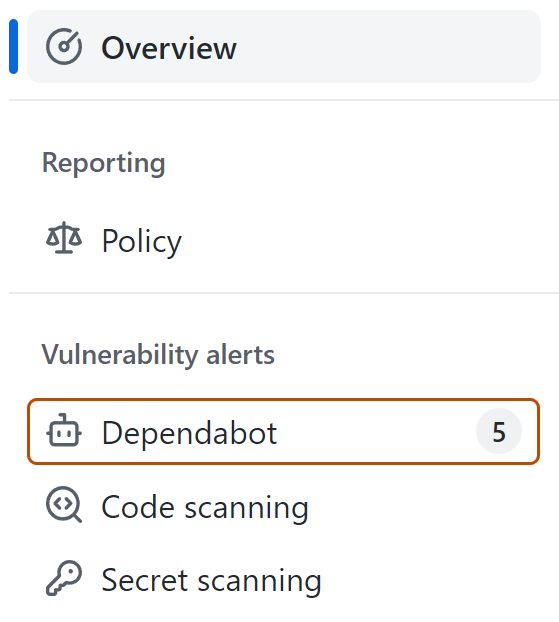
En la barra lateral "Alertas de vulnerabilidad" de información general de seguridad, haga clic en Dependabot. Si falta esta opción, significa que no tiene acceso a las alertas de seguridad y necesita que se le conceda acceso. Para obtener más información, vea Administración de la configuración de seguridad y análisis para el repositorio.
 -
Opcionalmente, refinar la lista de alertas:
-
Use los menús desplegables de la parte superior de la lista para ordenar o filtrar alertas.

-
Escriba directamente en la barra de búsqueda para filtrar las alertas, incluida la búsqueda de texto completo en los detalles de las alertas y los avisos de seguridad relacionados.
-
Haga clic en una etiqueta en una alerta para filtrar automáticamente la lista por esa etiqueta.
-
Para identificar alertas que afectan a las dependencias de desarrollo, filtre por el
scope:developmentfiltro o busque alertas etiquetadas como "Desarrollo". Esto puede ayudarle a priorizar las alertas que afectan primero a las dependencias de producción.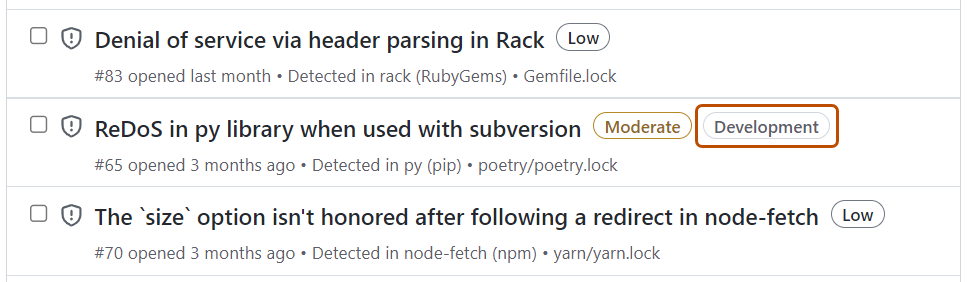
-
-
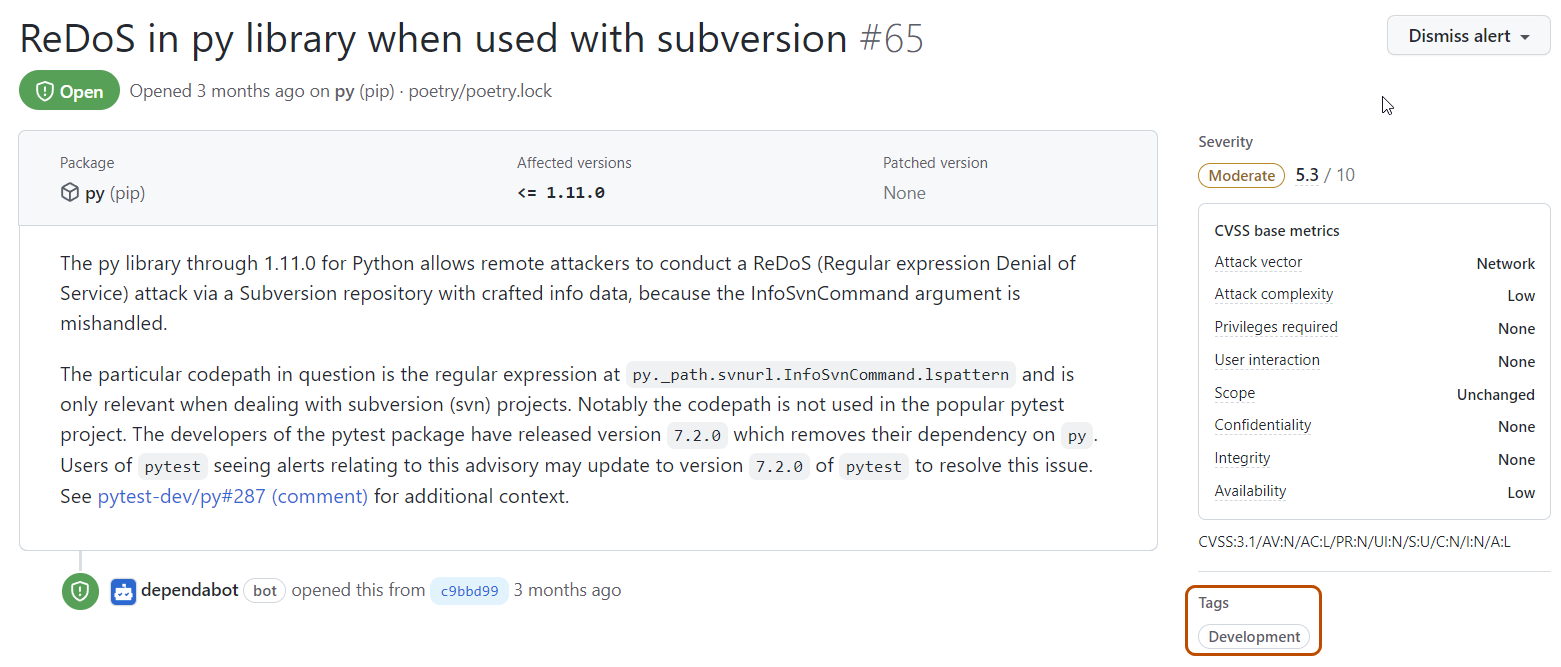
Haga clic en una alerta para ver sus detalles. Las alertas para las dependencias con ámbito de desarrollo incluyen una etiqueta "Desarrollo" en la sección "Etiquetas" de la página de detalles de la alerta.
-
Opcionalmente, para sugerir una mejora en el aviso de seguridad relacionado, en el lado derecho de la página de detalles de la alerta, haga clic en Sugerir mejoras para este aviso en GitHub Advisory Database. Consulta Edición de avisos de seguridad en la base de avisos de GitHub.


Sugerencias para priorizar alertas
- Use el criterio de ordenación más importante para centrarse en las alertas con el mayor impacto potencial.
- Priorice las alertas que afectan a las dependencias de producción sobre las dependencias de desarrollo.
- Use Evaluación de prioridades automática de Dependabot para priorizar o administrar automáticamente las alertas. Consulta Acerca de Evaluación de prioridades automática de Dependabot.
Para obtener más información sobre los ecosistemas compatibles y los archivos de manifiesto para el ámbito de dependencia, consulte Ecosistemas y manifiestos admitidos para el ámbito de dependencia.
Para obtener una lista completa de los filtros disponibles, consulte Filtros de alertas de Dependabot.
Para recuperar alertas mediante programación, consulte Endpoints de la API REST para Dependabot alerts.
Revisión y corrección de alertas
Puede revisar los detalles de una Dependabot alerta para comprender la vulnerabilidad y cómo corregirla.
Corrección de dependencias vulnerables
-
Consulta los detalles de una alerta. Para obtener más información, consulte Visualización y priorización Dependabot alerts (anterior).
-
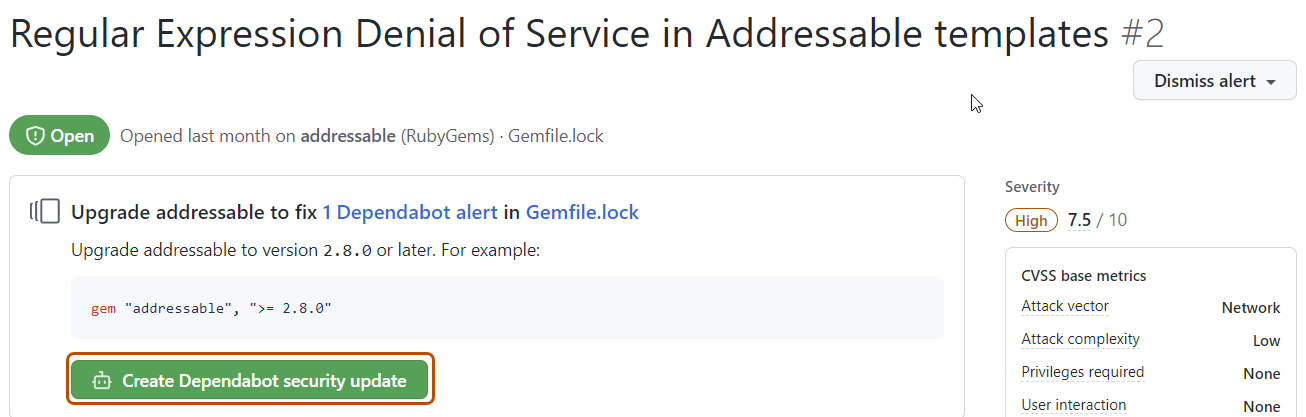
Si Dependabot security updates ha sido habilitado, puede haber un enlace a un pull request que corregirá la dependencia. Como alternativa, puede hacer clic en Crear Dependabot actualización de seguridad en la parte superior de la página de detalles de la alerta para crear una solicitud de incorporación de cambios.
-
Opcionalmente, si no usa Dependabot security updates, puede usar la información de la página para decidir a qué versión de la dependencia actualizar y crear una solicitud de incorporación de cambios para actualizar la dependencia a una versión segura.
-
Cuando estés listo para actualizar tu dependencia y resolver la vulnerabilidad, fusiona la solicitud de extracción.
Cada solicitud de incorporación de cambios generada por Dependabot incluye información sobre los comandos que puede usar para controlar Dependabot. Para más información, consulta Administrar las solicitudes de extracción para las actualizaciones de dependencia.

Descartar Dependabot alerts
Nota:
Solo puedes descartar alertas abiertas.
Si programas un trabajo extenso para actualizar una dependencia o decides que no es necesario corregir una alerta, puedes descartar la alerta. Descartar las alertas que ya has evaluado facilita la evaluación de nuevas alertas a medida que aparecen.
-
[Visualización y priorización Dependabot alerts](#viewing-and-prioritizing-dependabot-alerts) (arriba). -
Seleccione la lista desplegable "Descartar" y haga clic en un motivo para descartar la alerta. Las alertas descartadas sin corregir se pueden volver a abrir más adelante.
-
Opcionalmente, agrega un comentario de descarte. El comentario de descarte se agregará a la escala de tiempo de la alerta y se puede usar como justificación durante el proceso de auditoría y creación de informes. Puedes recuperar o establecer un comentario mediante GraphQL API. El comentario está incluido en el campo
dismissComment. Para obtener más información, consulta Objetos en la documentación de la API de GraphQL.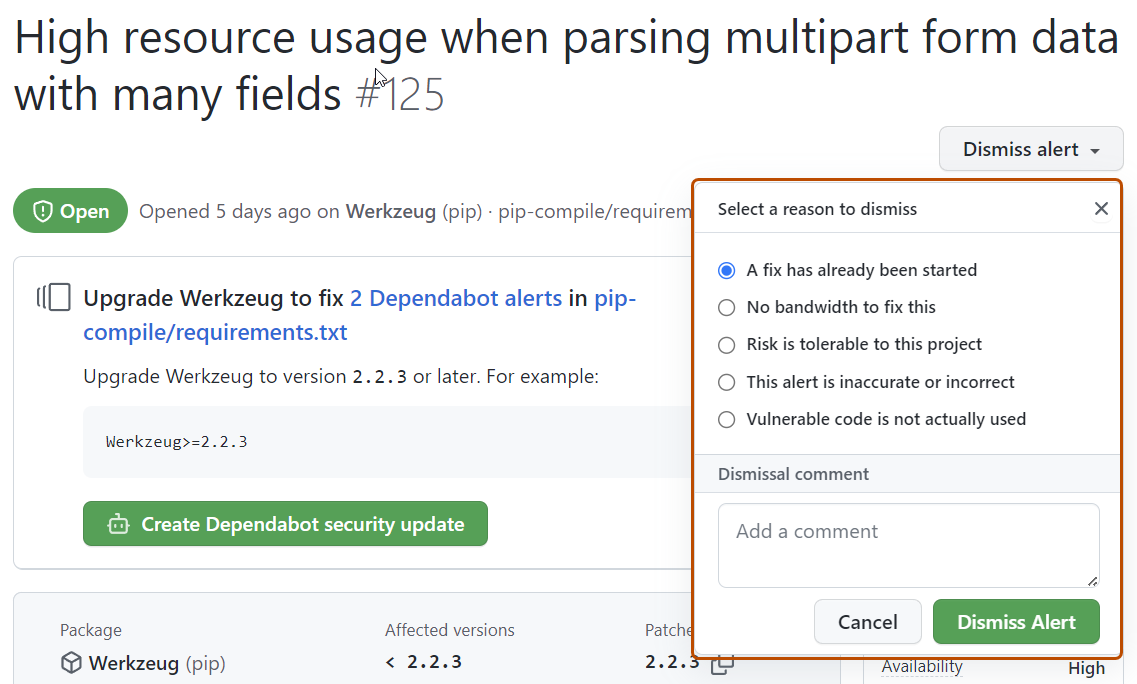
-
Haz clic en Descartar alerta.

Descartar varias alertas al mismo tiempo
-
Vea la ventana abierta Dependabot alerts.
-
Opcionalmente, filtra la lista de alertas seleccionando un menú desplegable y, después, haz clic en el filtro que quieres aplicar. También puedes teclear filtros en la barra de búsqueda.
-
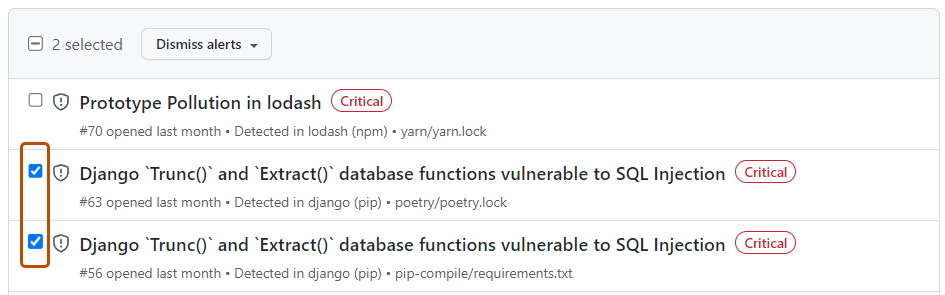
A la izquierda de cada título de alerta, selecciona las alertas que quieres descartar.
 -
Opcionalmente, en la parte superior de la lista de alertas, selecciona todas las alertas de la página.
 -
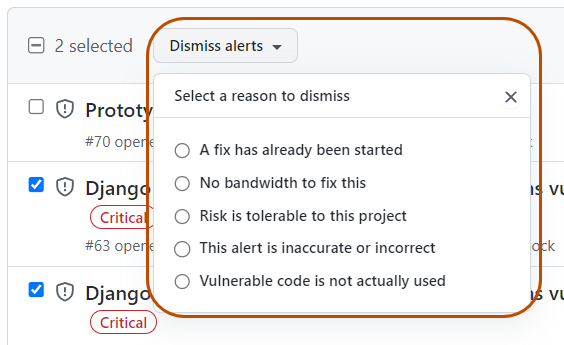
Selecciona la lista desplegable "Descartar alertas" y haz clic en un motivo para descartar las alertas.
Visualización y actualización de alertas cerradas
Puedes ver todas las alertas abiertas y puedes volver a abrir las alertas que se han descartado anteriormente. Las alertas cerradas que ya se han corregido no se pueden volver a abrir.
-
En GitHub, navegue hasta la página principal del repositorio.
-
En el nombre del repositorio, haga clic en la Security pestaña . Si no puede ver la pestaña " Security", seleccione el menú desplegable y, a continuación, haga clic en Security.
-
En la barra lateral "Alertas de vulnerabilidad" de información general de seguridad, haga clic en Dependabot. Si falta esta opción, significa que no tiene acceso a las alertas de seguridad y necesita que se le conceda acceso. Para obtener más información, vea Administración de la configuración de seguridad y análisis para el repositorio.
 -
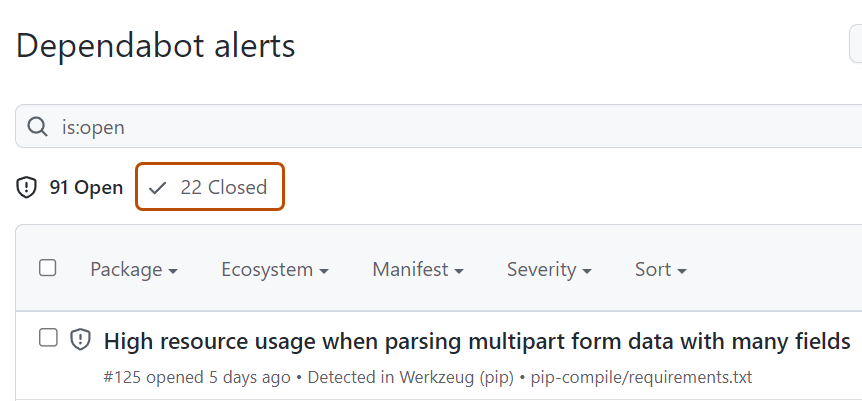
Para ver las alertas cerradas, haga clic en Closed.
-
Haga clic en la alerta que le gustaría ver o actualizar.
-
Si la alerta se ha descartado y desea volver a abrirla, también puede hacer clic en Reopen. Las alertas que ya se han corregido no se pueden volver a abrir.



Apertura de nuevo de varias alertas al mismo tiempo
-
Vea el objeto cerrado Dependabot alerts.
-
A la izquierda de cada título de alerta, seleccione las alertas que desea volver a abrir haciendo clic en la casilla adyacente a cada alerta.
-
Opcionalmente, en la parte superior de la lista de alertas, selecciona todas las alertas cerradas de la página.
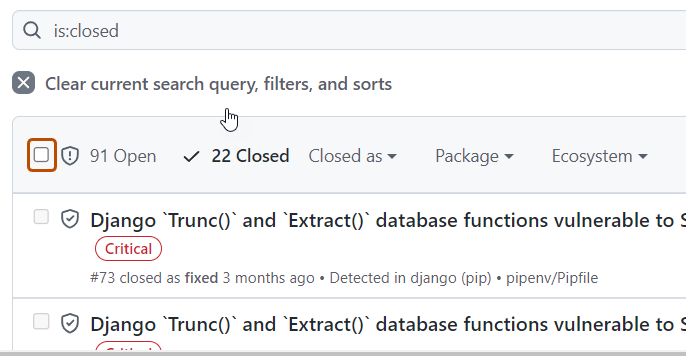 -
Haz clic en Volver a abrir para volver a abrir las alertas. Las alertas que ya se han corregido no se pueden volver a abrir.
Revisión de los registros de auditoría de Dependabot alerts
Cuando un miembro de su organización o empresa realiza una acción relacionada con Dependabot alerts, puede revisar las acciones en el registro de auditoría. Para obtener más información sobre el acceso al registro, consulte Revisar el registro de auditoría de tu organización y Acceso al registro de auditoría de la empresa.

Los eventos del registro de auditoría para Dependabot alerts incluyen detalles como quién realizó la acción, qué acción se realizó y cuándo se realizó la acción. El evento también incluye un vínculo a la propia alerta. Cuando un miembro de la organización descarta una alerta, el evento muestra el motivo del descarte y el comentario. Para obtener información sobre las Dependabot alerts acciones, vea la repository_vulnerability_alert categoría en Eventos de registro de auditoría para tu organización y Eventos de registro de auditoría de la empresa.