Tip
GitHub Enterprise Server administrators should instead see Downloading license use for your enterprise or organization.
Viewing a summary of usage
The options available to you vary according to your role and GitHub plan.
GitHub Enterprise Cloud:
- Anyone can view usage data for their own personal account unless a license for a metered product (for example, Copilot) is assigned to them by an organization or enterprise account.
- If you are an owner or billing manager of an enterprise, or an organization on GitHub Team, you will also have access to usage data for that organization or enterprise account.
GitHub Enterprise Server:
- Enterprise owners can access and download usage data for licenses, see Downloading license use for your enterprise or organization.
Personal accounts
-
Open your billing overview page: https://github.com/settings/billing.
-
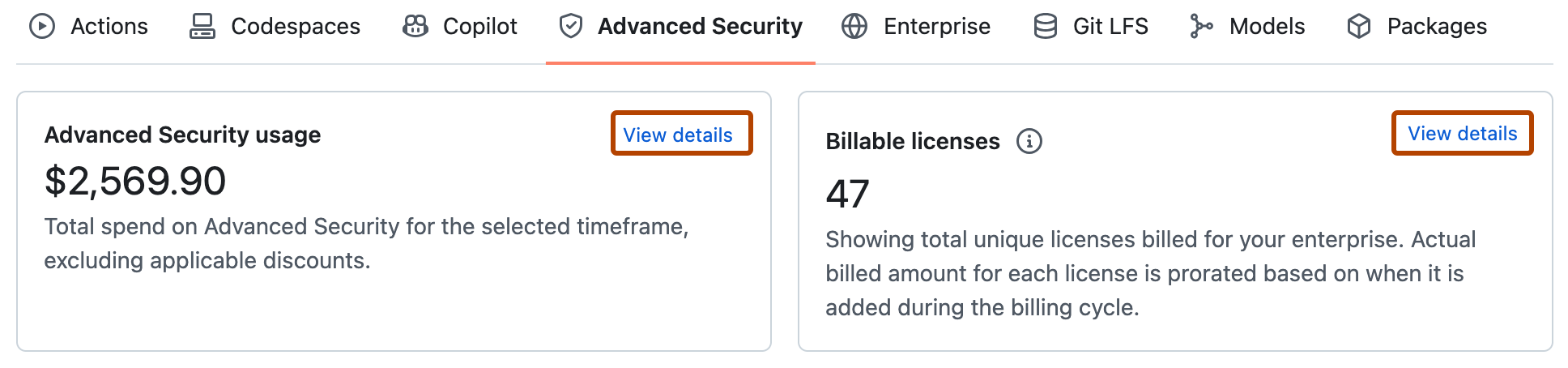
Use the tabbed view to see a summary of consumed use for each product that you use (in this example, the "Advanced Security" tab is shown).
-
Optionally, click View details to show more detailed information.

Organization and enterprise accounts
- Navigate to your organization or enterprise. For example, from the Organizations or Enterprises pages on GitHub.com.
- Click Billing & Licensing to display the billing and licensing overview for the account:
- Organization accounts: under "Access" in the sidebar for settings.
- Enterprise accounts: a separate tab at the top of the page.
Exploring usage data in more detail
You can also explore usage data for all metered products in more detail in the Usage or Metered usage view.
- Filter data on the page: click in the text box to see a list of available filters.
- Group data: options in the "Group" option vary based on the filters you define.
- Choose a time period: use the "Time Frame" option.
The metered usage chart and usage break down table both show your current choice of data.

Tip
For GitHub Actions, you can also view the billable job execution minutes for an individual workflow run. For more information, see Viewing job execution time.
Analyzing AI credits usage
Note
Enterprise owners and billing managers can filter AI usage data by user. Organization owners cannot view user-level data directly—to see per-user consumption, download a usage report instead. See Downloading usage reports.
If your account uses AI credits, an additional AI usage view is listed under Usage. You can use this view to understand included and metered usage across products, including Copilot and Advanced Security.
To review combined AI Scan and agentic autofix usage, open the AI usage view, under "Group by," select Products, then review Advanced Security. These features share the Code Security AI Credits SKU, so their usage is reported together within the product total, not as separate totals for each feature.
You can use the view to answer questions such as:
- What's our total AI credits consumption across all users?
- Which users are the heaviest consumers, and are they within their budget?
- Which models are driving the most spend?
- How widespread is adoption in the organizations where we rolled out Copilot?
For information about Copilot allowances and how AI credits are pooled across your enterprise, see Usage-based billing for organizations and enterprises.
App attribution is not available in the AI usage view. To identify usage from a GitHub App installed on an organization, download an AI usage report. Use the “List app installations for an organization” REST API endpoint and match app_client_id in the report to client_id in the response. The response’s app_slug identifies the app, and id identifies the installation. See REST API endpoints for organizations. For report field definitions, see Billing reports reference.
For information about Advanced Security AI-credit billing, see GitHub Advanced Security license billing.
Downloading usage reports
- Visit the "Metered Usage" page to access a metered billing report for all products, or navigate to the "AI usage" page for a detailed report on AI credits consumption.
- At the top of the page, click Get usage report.
- Specify the report details.
- Click Email me the report.
When the report is ready for you to download, you'll receive a message to your primary email account with a link to download the report. The link will expire after 24 hours.
For details of the fields included in the reports, see Billing reports reference.
Downloading the data plotted in the chart
When the chart on the "Metered usage" or "AI usage" page shows the data you want to download, click the button and select your preferred format.
