Включение частной отчетности о уязвимостях даёт исследователям безопасности безопасный и структурированный способ раскрывать уязвимости непосредственно в вашем репозитории. После включения исследователи могут подавать отчёты без использования публичного раскрытия или неформальных каналов. Для информации о частной отчетности о уязвимостях и их вписывающейся в координированное раскрытие информации см. Сведения о скоординированном раскрытии информации об уязвимостях безопасности.
Инструкции, описанные в этой статье, относятся к включению на уровне репозитория. Сведения о включении функции на уровне организации см. в разделе Сведения о скоординированном раскрытии информации об уязвимостях безопасности.
Включение или отключение отчетов о частных уязвимостях для репозитория
-
На GitHubперейдите на главную страницу репозитория.
-
Под именем репозитория щелкните Settings. Если вкладка "Параметры" не отображается, выберите раскрывающееся меню и нажмите кнопку "Параметры".

-
В разделе "Безопасность" боковой панели щелкните Advanced Security.
-
В разделе "Advanced Security" справа от "Отчеты о частных уязвимостях" нажмите кнопку "Включить или отключить", чтобы включить или отключить функцию соответственно.
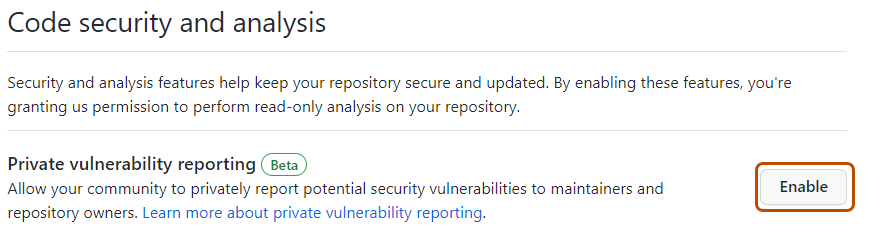

Когда включено отчёт о приватных уязвимостях, исследователи безопасности видят кнопку «Сообщить об уязвимости » на странице репозитория «Предупреждения», которая позволяет отправить приватный отчёт.

Исследователи по безопасности также могут использовать REST API для частного отчета об уязвимостях безопасности. См . раздел AUTOTITLE.
Настройка уведомлений для отчетов о частных уязвимостях
Когда новая уязвимость приватно сообщается в репозитории, GitHub уведомляет администраторов репозиториев и менеджеров безопасности, если:
- Они следят за репозиторием всей активности или подписаны на уведомления «Оповещения о безопасности».
- У них есть уведомления, включенные для репозитория.
Уведомления зависят от настроек уведомлений пользователя. Если вы получите уведомление по электронной почте:
- Вы смотрите репозиторий с выбранной «Вся активность » или с оповещения о безопасности (доступно в разделе «Пользовательство»).
- В настройках уведомлений, в разделе «Подписки», затем в «Наблюдение», вы выбрали получение уведомлений по электронной почте.
-
На GitHubперейдите на главную страницу репозитория.
-
Чтобы начать смотреть репозиторий, выберите Watch.

-
В выпадающем меню выберите «Вся активность » для получения уведомлений о всей активности, или выберите «Пользовательский», затем « Оповещения безопасности » — чтобы получать уведомления только о безопасности.
-
Перейдите к параметрам уведомлений для личная учетная запись. Они доступны по адресу https://github.com/settings/notifications.
-
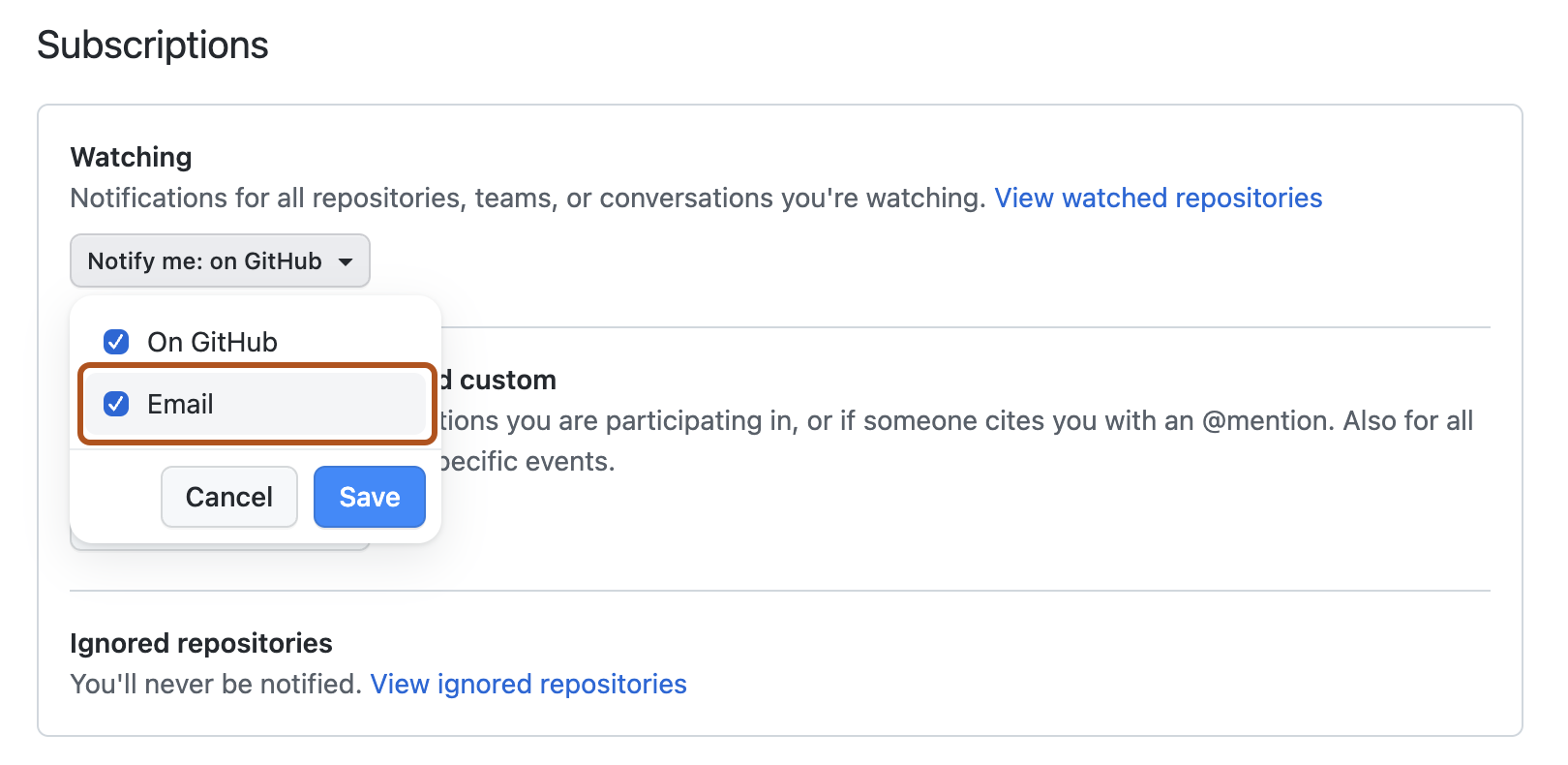
На странице настроек уведомлений, в разделе «Подписки», затем в разделе «Просмотр» нажмите на выпадающее меню «Уведомить меня ».
-
Выберите "Электронная почта" в качестве параметра уведомления, а затем нажмите кнопку "Сохранить".


Дополнительные сведения о настройке параметров уведомлений см. в разделе Управление параметрами безопасности и анализа для репозитория и настройка параметров часов для отдельного репозитория.