Managing worktrees in GitHub Desktop

Worktrees let you work on multiple branches of the same repository at the same time, so you can switch contexts, review changes, or make hotfixes without stashing your work.

Platform navigation

About worktrees

Git worktrees let you check out multiple branches of the same repository at the same time, each in its own directory on your computer. This means you can work on a feature branch, quickly review a pull request on a different branch, or make a hotfix without stashing or committing incomplete work on your current branch.

GitHub Desktop provides built-in support for creating, switching between, renaming, and deleting worktrees. When your repository has worktrees, a Worktree dropdown appears in the toolbar between the Repository and Branch dropdowns.

注意

The Worktree dropdown is only visible when you have at least one linked worktree. To create your first worktree, use the Repository menu or right-click the Repository dropdown in the toolbar.

Each worktree is associated with a branch (or a detached HEAD commit). The main worktree is your original repository clone, and linked worktrees are additional checkouts you create.

Creating a worktree

You can create a new worktree from the Repository menu, by right-clicking the Repository dropdown in the toolbar, or (once you already have worktrees) from the Worktree dropdown.

Creating your first worktree

If your repository does not have any linked worktrees yet, the Worktree dropdown is not visible in the toolbar. To create your first worktree:

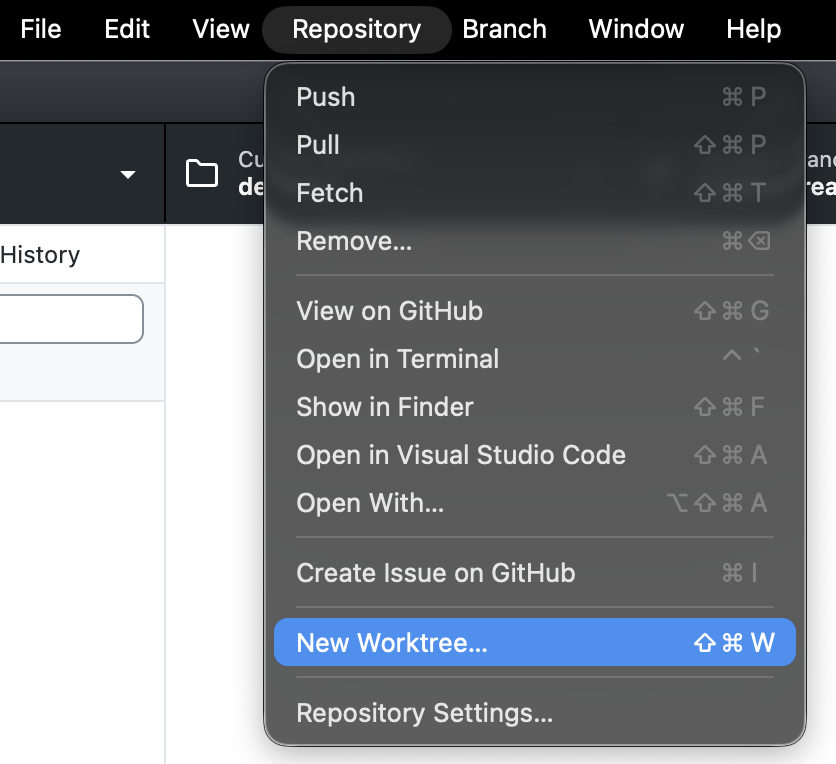
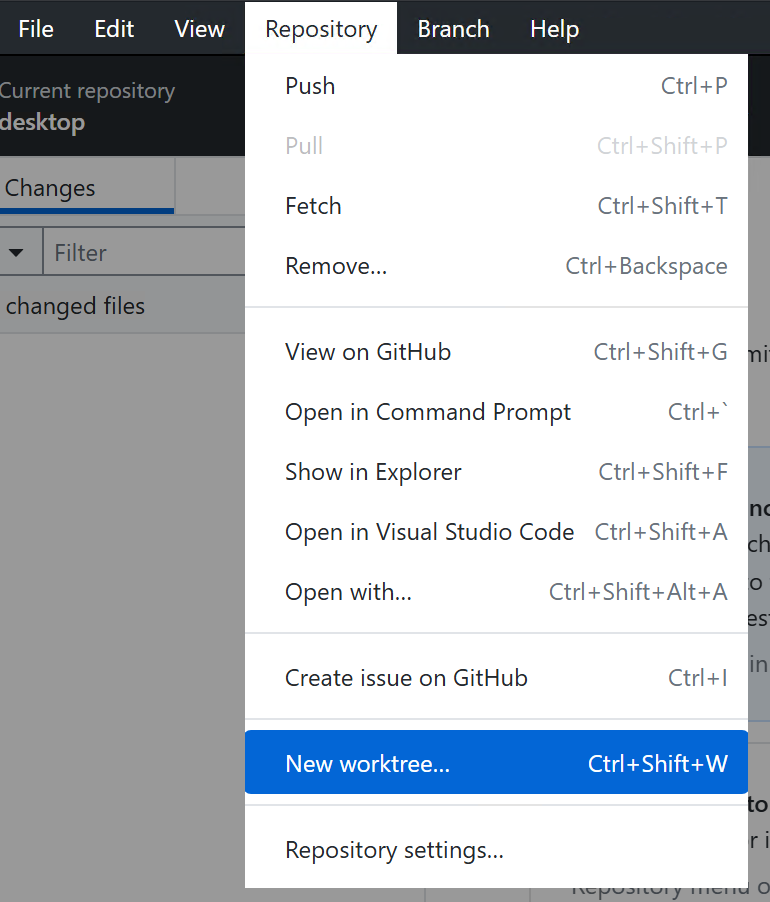
  1. In the menu bar, click Repository, then click New Worktree….

    Alternatively, right-click the Repository dropdown in the toolbar and click New Worktree….

    Screenshot of the "Repository" dropdown menu on a Mac. The "New Worktree" option is highlighted in blue.

    Screenshot of the "Repository" dropdown menu on Windows. The "New worktree" option is highlighted in blue.

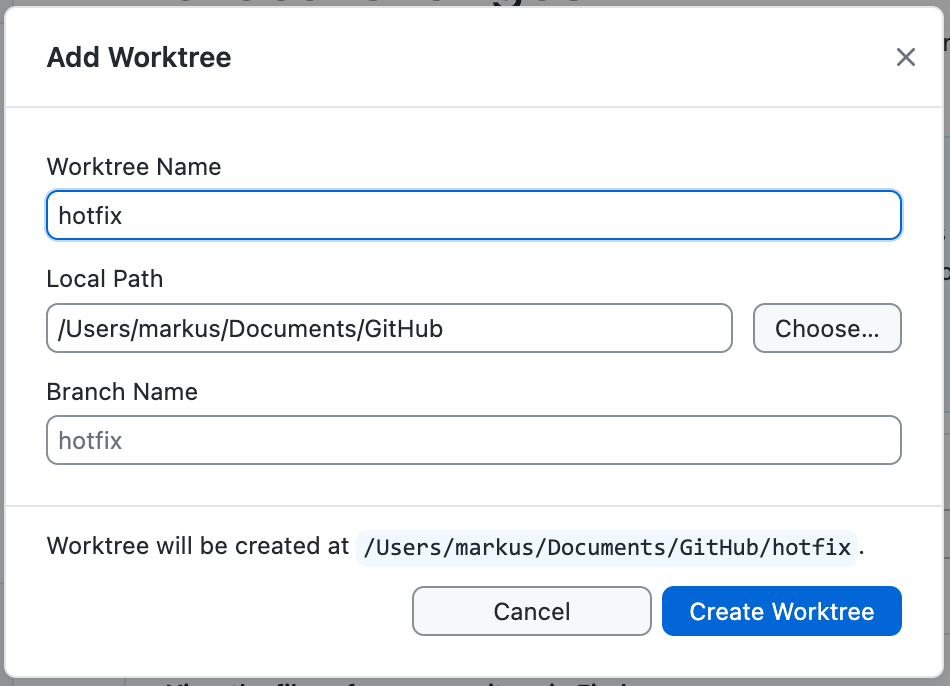
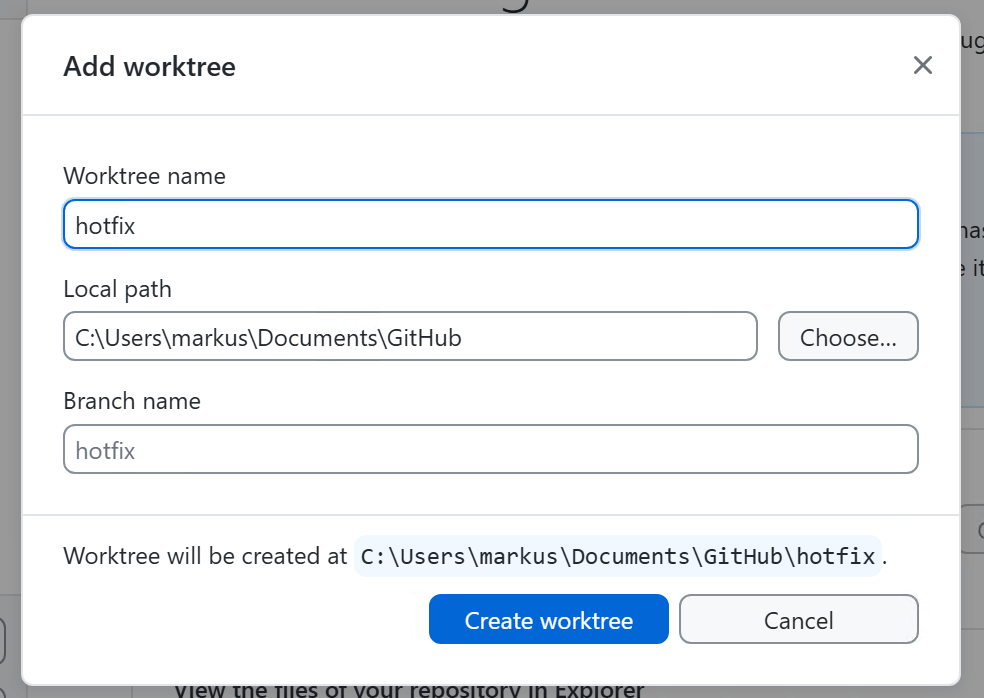
  2. In the "Add worktree" dialog, type a name for your worktree in the Worktree name field.

    GitHub Desktop automatically determines the path where the worktree will be created, based on the name you enter. The full path is displayed at the bottom of the dialog.

  3. Optionally, in the Branch name field, type or select a branch name.

    • If you leave this field empty, a new branch with the same name as the worktree is created.
    • If you type the name of an existing local branch, that branch is checked out in the new worktree.
    • If you type the name of a remote branch, a new local branch is created from the remote reference.

    Screenshot of the "Add worktree" dialog on a Mac, showing name, path, and branch fields.

    Screenshot of the "Add worktree" dialog on Windows, showing name, path, and branch fields.

  4. Click Create Worktree.

After you create your first linked worktree, the Worktree dropdown appears in the toolbar.

Creating additional worktrees

Once the Worktree dropdown is visible, you can also create worktrees from there:

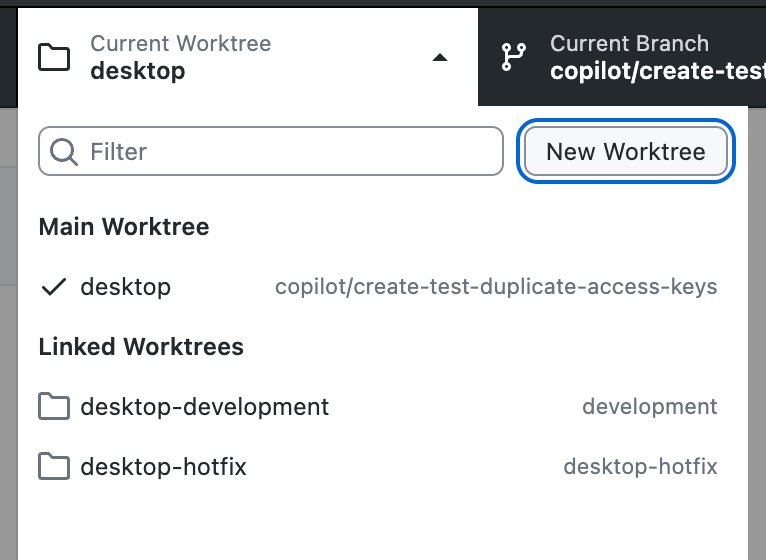
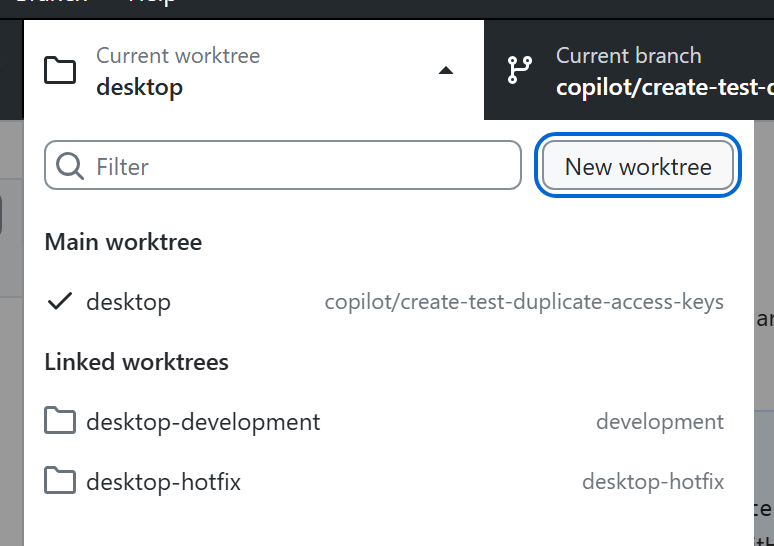
  1. In the repository bar, click the Worktree dropdown.

    Screenshot of the worktree dropdown on a Mac. In the expanded "Worktree" dropdown the New Worktree button is highlighted in blue.

    Screenshot of the worktree dropdown on Windows. In the expanded "Worktree" dropdown the New worktree button is highlighted in blue.

  2. Click New Worktree.

  3. Complete the fields in the "Add worktree" dialog as described in Creating your first worktree, then click Create Worktree.

    GitHub Desktop creates the worktree and automatically switches to it.

Switching between worktrees

You can switch between worktrees at any time. When you switch worktrees, GitHub Desktop updates the working directory to the selected worktree's path.

  1. In the repository bar, click the Worktree dropdown.

  2. In the worktree list, click the worktree you want to switch to.

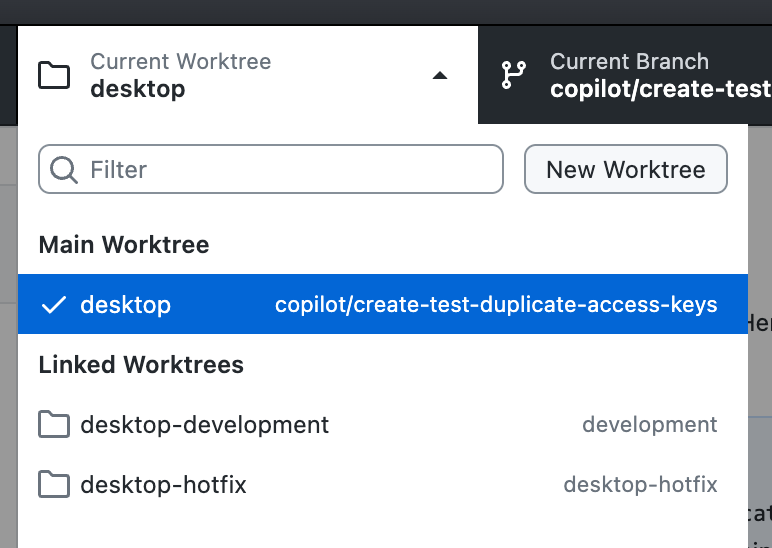
    Screenshot of the worktree dropdown showing "Main worktree" and "Linked worktrees" groups with a checkmark on the active worktree.

    The worktree list is grouped into "Main worktree" and "Linked worktrees". Each item displays the worktree directory name and the associated branch name. You can use the filter field at the top of the list to search for a worktree by name.

Renaming a worktree

You can rename linked worktrees. You cannot rename the main worktree.

  1. In the repository bar, click the Worktree dropdown.

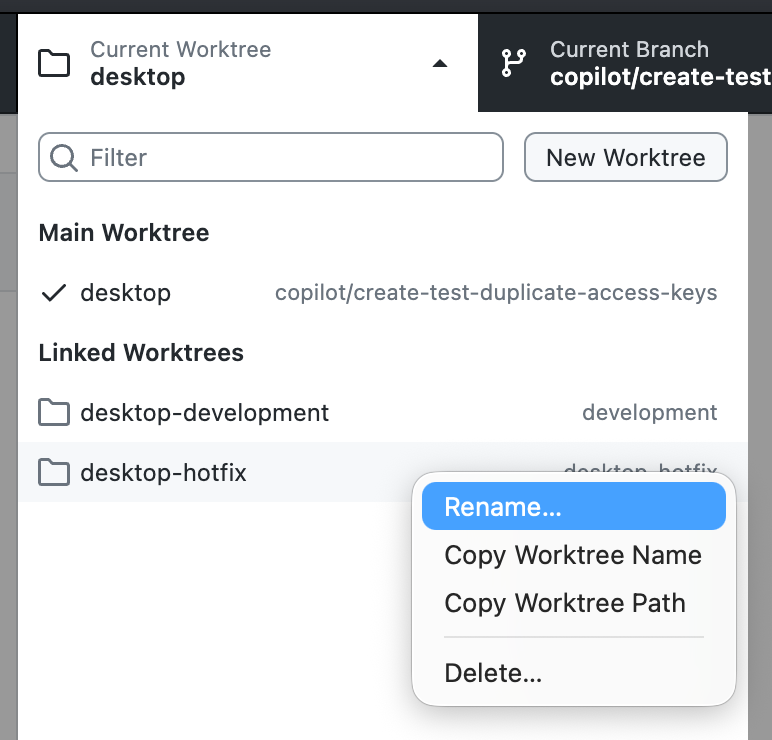
  2. Right-click the worktree you want to rename, then click Rename….

    Screenshot of a context menu on a worktree item on a Mac, with Rename, Copy Name, Copy Path, and Delete options.

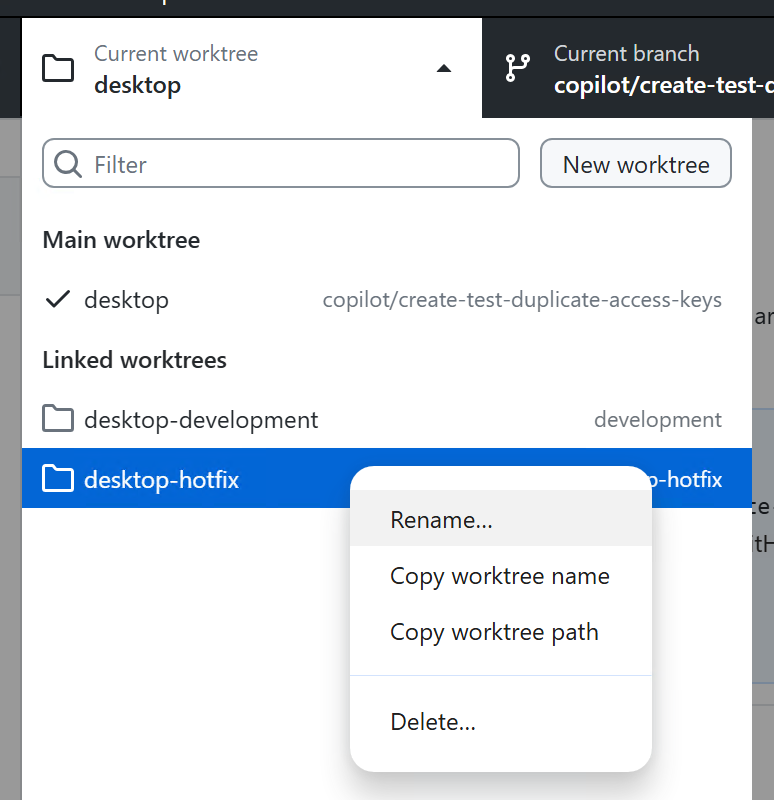
    Screenshot of a context menu on a worktree item on Windows, with Rename, Copy Name, Copy Path, and Delete options.

  3. In the "Rename worktree" dialog, type a new name for the worktree.

  4. Click Rename.

Deleting a worktree

You can delete linked worktrees that you no longer need. You cannot delete the main worktree or worktrees that Git has locked to prevent deletion.

  1. In the repository bar, click the Worktree dropdown.

  2. Right-click the worktree you want to delete, then click Delete….

  3. In the confirmation dialog, click Delete.

    Optionally, select Do not show this message again to skip this confirmation in the future. You can re-enable the confirmation in your preferences. See Configuring a prompt for deleting worktrees.

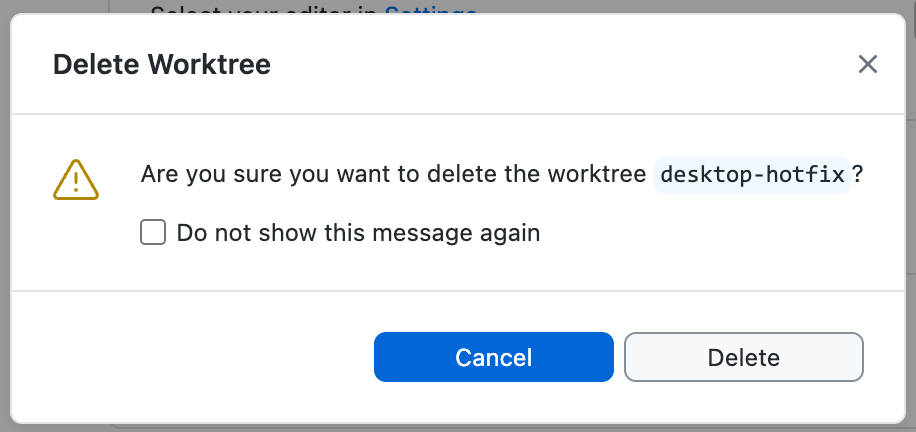
    Screenshot of the "Delete Worktree" confirmation dialog on a Mac with a "Do not show this message again" checkbox.

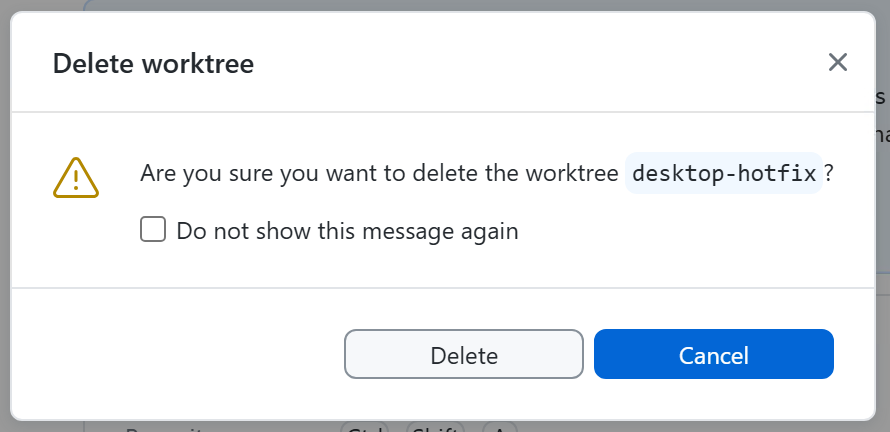
    Screenshot of the "Delete Worktree" confirmation dialog on Windows with a "Do not show this message again" checkbox.

    If the deletion fails (for example, because the worktree contains uncommitted changes), GitHub Desktop displays an error dialog offering to forcefully delete the worktree. If you cancel, GitHub Desktop switches you back to the worktree you were originally working in.

Configuring a prompt for deleting worktrees

You can choose whether GitHub Desktop asks for confirmation before deleting a worktree.

  1. 在菜单栏中,选择“GitHub Desktop”,然后单击“设置”********。
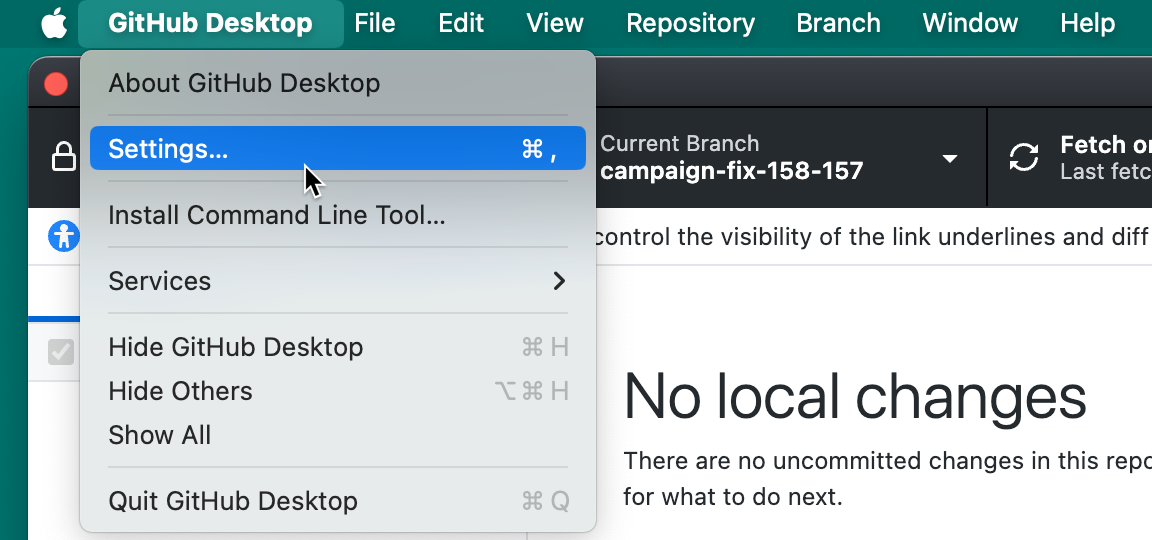
    Mac 上的菜单栏的屏幕截图。 在打开的“GitHub Desktop”下拉菜单下,光标悬停在“设置”上,该设置以蓝色突出显示。

  2. In the Settings window, click Prompts.

  3. Select or deselect the Removing worktrees checkbox to enable or disable the confirmation prompt.

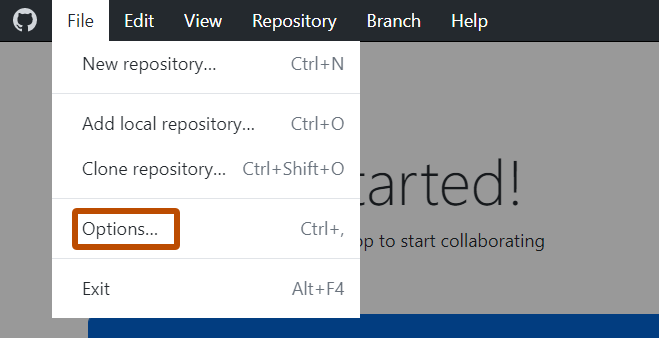
  1. 使用文件”菜单,然后单击“选项” 。

    Windows 上的“GitHub Desktop”菜单栏的屏幕截图。 在展开的“文件”下拉菜单中,以橙色框出了“选项”项。

  2. In the Options window, click Prompts.

  3. Select or deselect the Removing worktrees checkbox to enable or disable the confirmation prompt.

Further reading