1. Understand the effects of removing a member
When you remove members from an organization:
- Removed members will lose access to private forks of your organization's private repositories, but may still have local copies. However, they cannot sync local copies with your organization's repositories. Their private forks can be restored if the user is reinstated as an organization member within three months of being removed from the organization. Ultimately, you are responsible for ensuring that people who have lost access to a repository delete any confidential information or intellectual property.
- Removed members will also lose access to private forks of your organization's internal repositories, if the removed member is not a member of any other organization in your enterprise.
- Any organization invitations sent by the removed user, that have not been accepted, are canceled and will not be accessible.
- When you remove a user from your organization, their membership data is saved for three months. You can restore their data, or any private forks they owned of your organization's repositories, if you invite the user to rejoin the organization within that time frame. For more information, see Reinstating a former member of your organization.
2. Understand how you manage membership
If you have enabled user provisioning with SCIM on your GitHub Enterprise Server instance, check the member type of the user. If the user is "Managed by IdP groups", remove the user from any IdP groups that are linked to teams with access to the organization. See Viewing people in your enterprise.
3. Remove the user manually
If the user's organization membership is not managed with by a SCIM integration, you can remove the user from an organization manually.
-
In the upper-right corner of GitHub, click your profile picture, then click Organizations.
-
Click the name of your organization.
-
Under your organization name, click People.

-
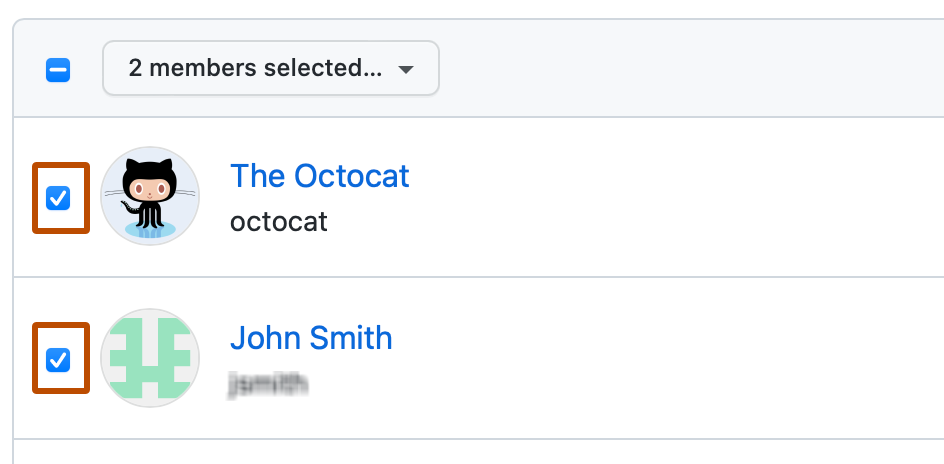
Select the member or members you'd like to remove from the organization.
-
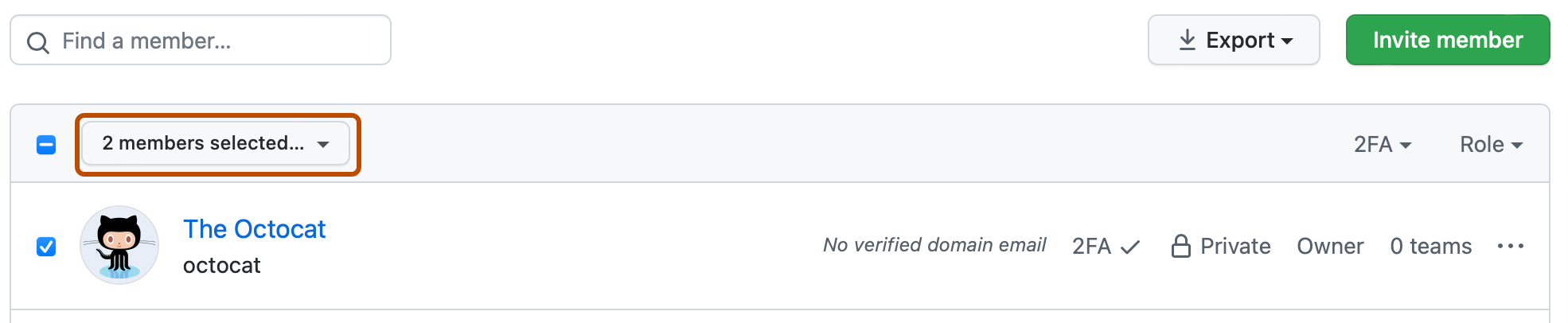
Above the list of members, select the X members selected... dropdown menu, and click Remove from organization.
-
Review the member or members who will be removed from the organization, then click Remove members.


