끌어오기 요청 자동 병합

모든 병합 요구 사항이 충족되면 끌어오기 요청이 자동으로 병합되도록 끌어오기 요청에 자동 병합을 사용하도록 설정하여 개발 속도를 높일 수 있습니다.

누가 이 기능을 사용할 수 있나요?

끌어오기 요청에 대한 자동 병합은 조직의 GitHub Free 및 GitHub Free이(가) 있는 퍼블릭 리포지토리와 GitHub Pro, GitHub Team, GitHub Enterprise Cloud 및 GitHub Enterprise Server의 퍼블릭 및 프라이빗 리포지토리에서 사용할 수 있습니다. 자세한 내용은 GitHub 계획을(를) 참조하세요.

이 기사에서

About auto-merge

If you enable auto-merge for a pull request, the pull request will merge automatically when all required reviews are met and all required status checks have passed. Auto-merge helps you avoid waiting around for requirements to be met, so you can move on to other tasks.

Before you can use auto-merge with a pull request, auto-merge must be enabled for the repository. For more information, see Managing auto-merge for pull requests in your repository.

After you enable auto-merge for a pull request, if someone who does not have write permissions to the repository pushes new changes to the head branch or switches the base branch of the pull request, auto-merge will be disabled. For example, if a maintainer enables auto-merge for a pull request from a fork, auto-merge will be disabled after a contributor pushes new changes to the pull request.

You can provide feedback about auto-merge through a GitHub Community discussion.

Enabling auto-merge

참고

The option to enable auto-merge is shown only on pull requests that cannot be merged immediately. For example, when a branch protection rule enforces "Require pull request reviews before merging" or "Require status checks to pass before merging" and these conditions are not yet met. For more information, see Managing a branch protection rule.

People with write permissions to a repository can enable auto-merge for a pull request.

  1. On GitHub, navigate to the main page of the repository.

  2. Under your repository name, click Pull requests.

    Screenshot of the main page of a repository. In the horizontal navigation bar, a tab, labeled "Pull requests," is outlined in dark orange.

  3. In the "Pull Requests" list, click the pull request you'd like to auto-merge.

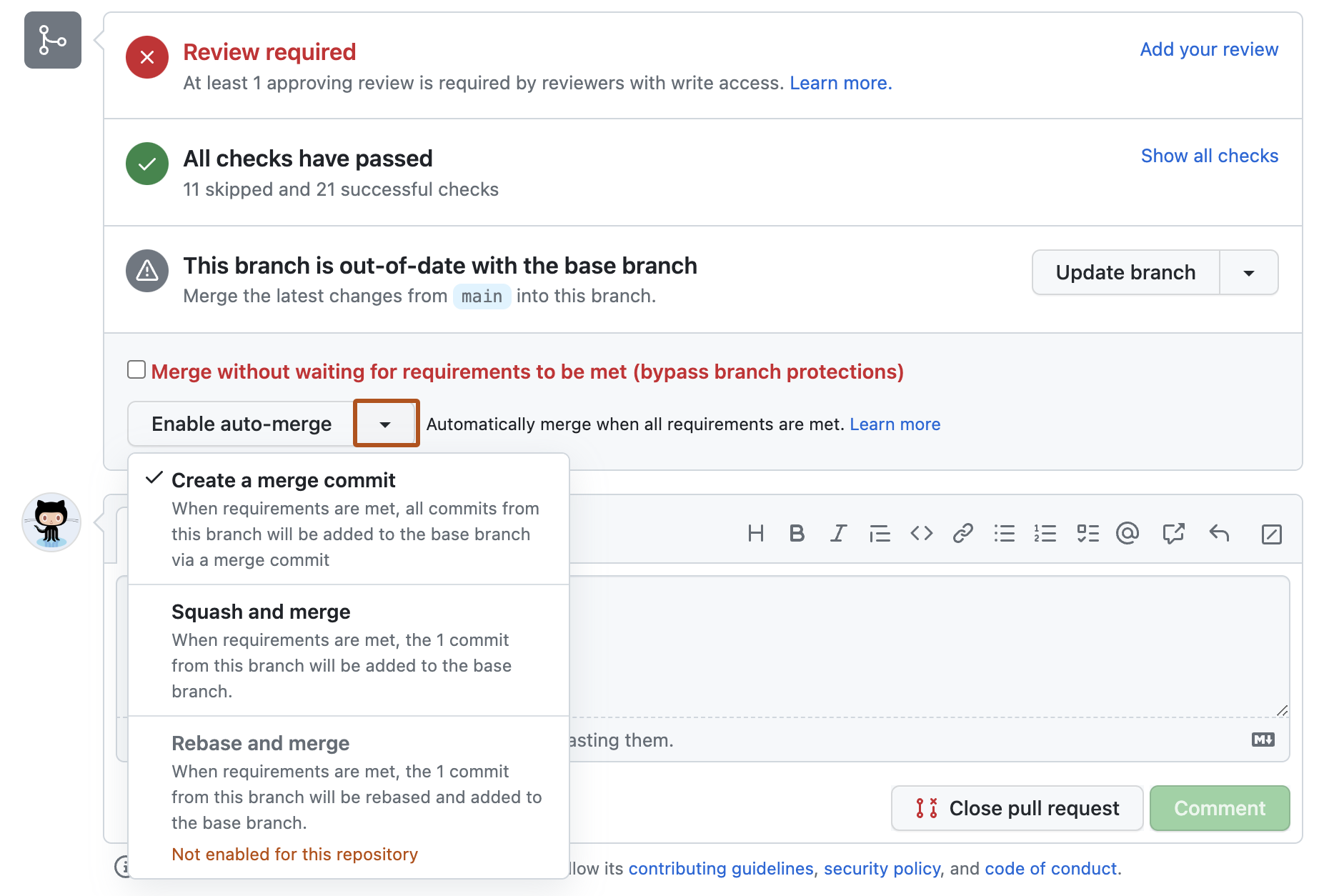
  4. Optionally, to choose a merge method, select the dropdown menu, then click a merge method. For more information, see About pull request merges.

    Screenshot of the merge box of a pull request. A dropdown menu, labeled with a downward-facing triangle, is outlined in dark orange.

  5. Click Enable auto-merge.

  6. If you chose the merge or squash and merge methods, type a commit message and description and choose the email address you want to author the merge commit.

    참고

    The email dropdown menu is not available if you have email privacy enabled or if you only have one verified and visible email associated with your GitHub account.

  7. Click Confirm auto-merge.

Disabling auto-merge

People with write permissions to a repository and pull request authors can disable auto-merge for a pull request.

  1. On GitHub, navigate to the main page of the repository.

  2. Under your repository name, click Pull requests.

    Screenshot of the main page of a repository. In the horizontal navigation bar, a tab, labeled "Pull requests," is outlined in dark orange.

  3. In the "Pull Requests" list, click the pull request you'd like to disable auto-merge for.

  4. In the merge box, click Disable auto-merge.