セキュリティの分析情報の表示

セキュリティの概要の概要ダッシュボードを使用して、Organization または Enterprise 内のリポジトリのセキュリティの状況を監視できます。

この機能を使用できるユーザーについて

アクセスには以下が必要です。

  • 組織ビュー: 組織内のリポジトリへの書き込みアクセス
  • エンタープライズ ビュー: 組織の所有者とセキュリティ マネージャー

The overview page in security overview provides a consolidated dashboard of your organization or enterprise's security landscape. You can filter the dashboard by time period, tool, and other criteria to focus on specific areas of interest. For more information about the overview dashboard, available metrics, and access permissions, see About security overview.

You can download a CSV file of the overview dashboard data for your organization or enterprise. For more information, see Exporting data from security overview.

メモ

The summary views ("Overview", "Coverage" and "Risk") show data only for default alerts. Secret scanning alerts for ignored directories and non-provider alerts are all omitted from these views. Consequently, the individual alert views may include a larger number of open and closed alerts.

Viewing the security overview dashboard for your organization

  1. On GitHub, navigate to the main page of the organization.

  2. Under your organization name, click Security.

    Screenshot of the horizontal navigation bar for an organization. A tab, labeled with a shield icon and "Security," is outlined in dark orange.

  3. The overview page is the primary view that you will see after clicking on the "Security" tab. To get to the dashboard from another security overview page, in the sidebar, click Overview.

  4. By default, the Detection tab is displayed. If you want to switch to another tab to see other metrics, click Remediation or Prevention.

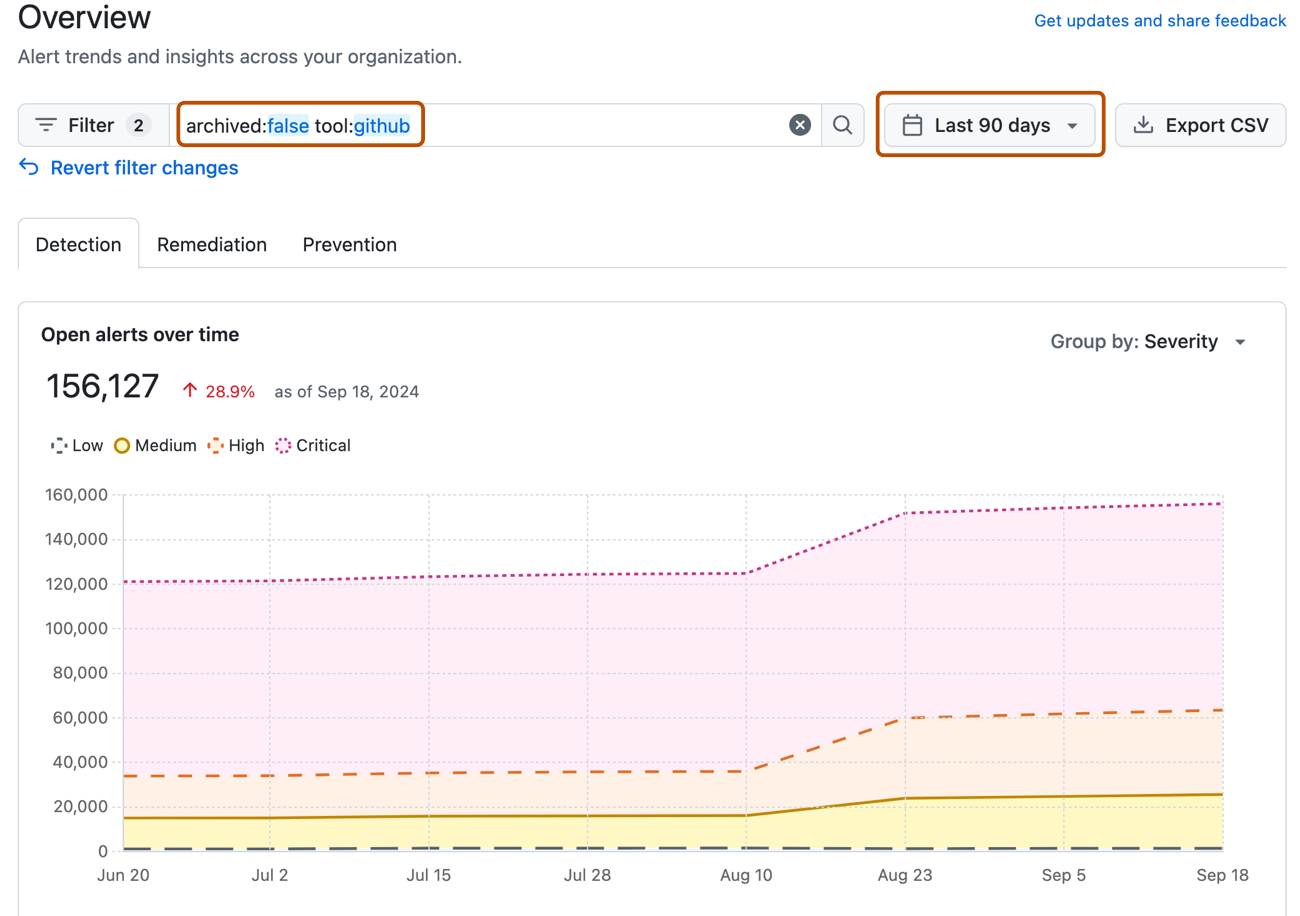
  5. Use the options at the top of the overview page to filter the group of alerts you want to see metrics for. All of the data and metrics on the page will change as you adjust the filters.

    • Use the date picker to set the time range that you want to view alert activity and metrics for.
    • Click in the search box to add further filters on the alerts and metrics displayed.

    Screenshot of the overview page in security overview. Filtering options are outlined in dark orange, including the date picker and search field.

Viewing the security overview dashboard for your enterprise

  1. Navigate to GitHub Enterprise Cloud.

  2. In the top-right corner of GitHub, click your profile picture.

  3. Depending on your environment, click Enterprise, or click Enterprises then click the enterprise you want to view.

  4. At the top of the page, click Security.

  5. By default, the Detection tab is displayed. If you want to switch to another tab to see other metrics, click Remediation or Prevention.

  6. Use the options at the top of the overview page to filter the group of alerts you want to see metrics for. All of the data and metrics on the page will change as you adjust the filters.

    • Use the date picker to set the time range that you want to view alert activity and metrics for.
    • Click in the search box to add further filters on the alerts and metrics displayed.

    Screenshot of the overview page in security overview. Filtering options are outlined in dark orange, including the date picker and search field.

ヒント

You can use the owner filter in the search field to filter the data by organization. If you're an owner of an enterprise with managed users, you can use the owner-type filter to filter the data by the type of repository owner, so that you can view data from either organization-owned repositories or user-owned repositories. For more information, see Filtering alerts in security overview.

Next steps

The dashboard displays metrics about alert status, remediation velocity, and high-risk repositories in your organization or enterprise. For detailed explanations of each metric and how it's calculated, see Security overview dashboard metrics.

You can filter the dashboard by time period, tool, repository, and other criteria. For more information, see Filtering alerts in security overview.