About renaming branches
You can rename a branch in a repository on GitHub.com. For more information about branches, see Branches.
When you rename a branch, any URLs that contain the old branch name are automatically redirected to the equivalent URL for the renamed branch. Branch protection policies are also updated, as well as the base branch for open pull requests (including those for forks) and draft releases. If the renamed branch is the head branch of an open pull request, this pull request is closed.
If a repository's default branch is renamed, GitHub provides instructions on the repository's home page directing contributors to update their local Git environments.
Although file URLs are automatically redirected, raw file URLs are not redirected. Also, GitHub does not perform any redirects if users perform a git pull for the previous branch name.
GitHub Actions workflows do not follow renames, so if your repository publishes an action, anyone using that action with @{old-branch-name} will break. You should consider adding a new branch with the original content plus an additional commit reporting that the branch name is closing down and suggesting that users migrate to the new branch name.
Who can rename a branch
Most branches can be renamed by any user with write permission to the repository.
Some branches can only be renamed by a repository administrator: the repository's default branch, and any branch covered by a branch protection or a repository-level branch ruleset.
When organization-level or enterprise-level rulesets target branches in a repository, renaming those branches typically requires an organization or enterprise administrator.
However, organization and enterprise owners can allow repository administrators to rename branches covered by these rulesets, provided the new branch name is still subject to all the same rules as the current name, or the repository administrator has permission to bypass those rules. Changing the default branch works similarly.
For more information, see Allowing repository admins to rename branches with organization rulesets and Enforcing repository management policies in your enterprise.
Repository administrators may create and delete branches so long as they have the appropriate permissions.
Renaming a branch
-
On GitHub, navigate to the main page of the repository.
-
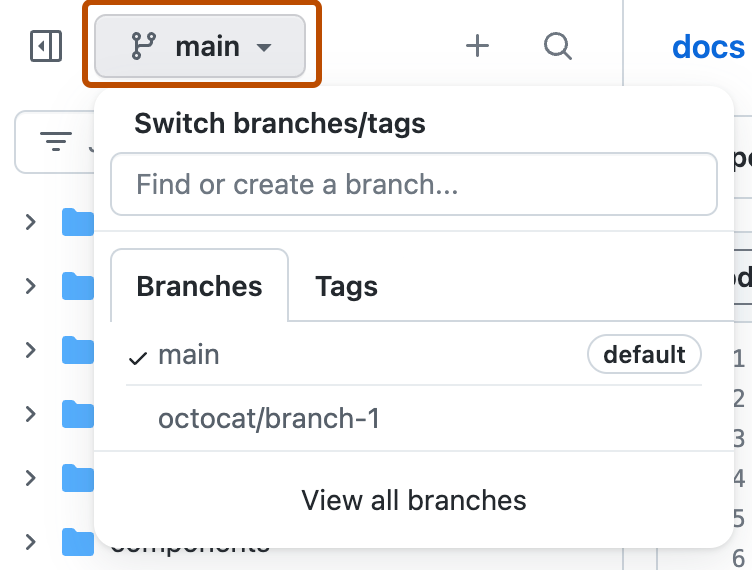
From the file tree view on the left, select the branch dropdown menu, then click View all branches. You can also find the branch dropdown menu at the top of the integrated file editor.
-
Next to the branch you want to rename, select the dropdown menu, then click Rename branch.
-
Type a new name for the branch.
-
Review the information about local environments, then click Rename branch.

Updating a local clone after a branch name changes
After you rename a branch in a repository on GitHub, any collaborator with a local clone of the repository will need to update the clone.
From the local clone of the repository on a computer, run the following commands to update the name of the default branch.
git branch -m OLD-BRANCH-NAME NEW-BRANCH-NAME
git fetch origin
git branch -u origin/NEW-BRANCH-NAME NEW-BRANCH-NAME
git remote set-head origin -a
Optionally, run the following command to remove tracking references to the old branch name.
git remote prune origin