管理对个人帐户 项目(经典) 的访问权限

作为 项目(经典) 所有者,你可以添加或移除协作者并自定义他们对 项目(经典) 的访问权限。

A collaborator is a person who has permissions to a project (classic) you own. A collaborator's permissions will default to read access. For more information, see Permission levels for a project (classic) owned by a personal account.

Inviting collaborators to a user-owned project (classic)

  1. Navigate to the project (classic) where you want to add an collaborator.

  2. On the top-right side of the project (classic), click Menu.

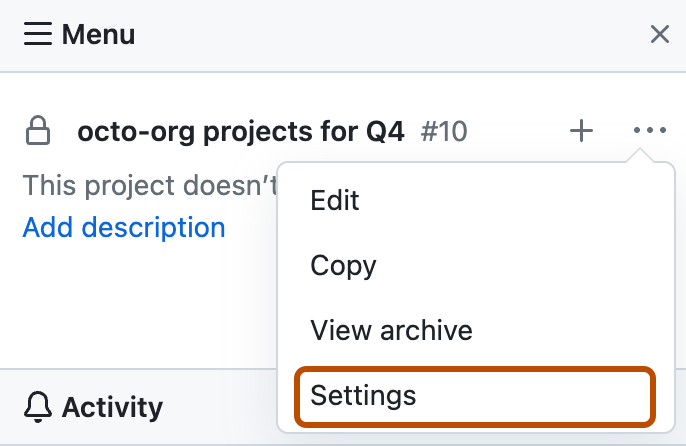
  3. Click , then click Settings.

    Screenshot showing the project menu. The settings option is highlighted with an orange outline.

  4. In the left sidebar, click Collaborators.

  5. Under "Search by username, full name or email address", type the collaborator's name, username, or GitHub email.

  6. In the search results, click the correct username and click Add collaborator.

  7. The new collaborator has read permissions by default. Optionally, next to the new collaborator's name, use the drop-down menu and choose a different permission level.

Removing a collaborator from a user-owned project (classic)

  1. On the top-right side of the project (classic), click Menu.

  2. Click , then click Settings.

    Screenshot showing the project menu. The settings option is highlighted with an orange outline.

  3. In the left sidebar, click Collaborators.

  4. Next to the collaborator you want to remove, click X.

Next steps

For reference information, see Personal account reference.